Keeping a gaming PC clean and quiet comes down to three habits: block dust at the intakes with filters, clean the case every few months before dust builds up, and let fans run slower with better airflow instead of fighting heat at full speed. None of it requires expensive parts, just a routine.
§01Why does a gaming PC get so dusty in the first place?
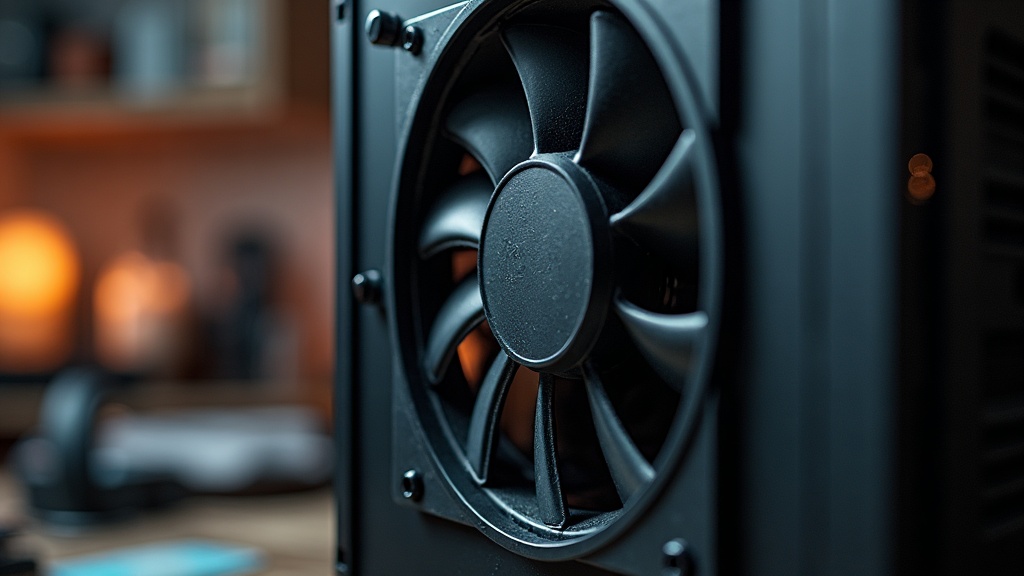
A gaming PC gets dusty because its fans are constantly pulling room air through the case to cool the components, and that air carries dust, pet hair and fibers with it. Every bit of that debris that doesn’t pass straight through gets trapped on filters, fan blades, heatsinks and inside the power supply.
Unlike a sealed laptop or a console tucked into a media unit, a desktop tower usually sits on the floor or under a desk, which are two of the dustiest spots in any room. Carpet fibers, pet dander and general household dust settle low, and the PC’s intake fans are essentially vacuuming that air in around the clock whenever the system is on.
The more dust that accumulates on a heatsink or fan blade, the worse that component is at moving heat or air, which means the fans have to spin faster to compensate. That’s the direct link between a dusty PC and a loud one: dust doesn’t just look bad, it actively makes the cooling system work harder.
§02What actually causes a gaming PC to be loud?
Noise almost always comes from fans spinning fast to cool hot components, though pump noise from liquid coolers and coil whine from the graphics card or power supply can also contribute. Dust buildup, poor airflow and aggressive fan curves are the most common causes.
It helps to separate the noise sources rather than treating “the PC is loud” as one problem:
- Case and CPU fans ramping up because internal temperatures are rising
- Graphics card fans spinning hard during demanding games, since the GPU is often the single hottest part of the system
- Pump noise from an all-in-one liquid cooler, which is usually a low hum or faint gurgle rather than a whine
- Coil whine, a high-pitched electrical noise from the graphics card or power supply under load, which is a known quirk of some components rather than a fault to clean away
Cleaning and airflow fixes address the first two directly and often improve the graphics card noise as a side effect, since a cooler-running system throughout tends to let every fan relax.
§03How often should you actually clean a gaming PC?
Most gaming PCs benefit from a light dusting every one to three months and a fuller clean roughly twice a year. Homes with pets, carpet, or a PC placed on the floor need it more often than a PC on a desk in a relatively clean room.
Signs it’s overdue include a visibly clogged front filter, fans that sound louder than they used to at the same workload, or a case that feels warmer to the touch than usual. Waiting for obvious symptoms is fine for a casual approach, but a quick look every couple of months takes less time than most people expect and prevents dust from packing down into a harder, greasier layer that’s tougher to remove later.
§04What’s the actual process for cleaning a gaming PC?
Cleaning a gaming PC safely means powering it off, unplugging it, and using compressed air or a low-static brush to remove dust from filters, fans and heatsinks without letting the fan blades spin freely or touching sensitive components with bare hands.
- Shut the PC down completely and unplug it from the wall, then wait a few minutes for capacitors to discharge.
- Move it to a well-ventilated area, ideally outdoors or near an open window, since this gets genuinely dusty.
- Remove any magnetic or slide-in dust filters and rinse or brush them clean, letting them dry fully before reinstalling.
- Use compressed air in short bursts to blow dust out of the case, holding fan blades still with a finger to stop them spinning too fast, which can strain the small bearings inside.
- Pay extra attention to the CPU cooler and graphics card heatsink fins, where dust tends to pack down and is easy to miss from a quick glance.
- Wipe down the glass or plastic panels with a microfiber cloth rather than paper towels, which can leave lint or scratch tinted glass.
A can of compressed air, a soft brush and a microfiber cloth cover nearly everything most people need; there’s no requirement for specialist tools or a trip to a repair shop.
§05Does where you put the PC actually matter?
Placement matters a lot. A PC tucked into a closed cabinet, pushed against a wall, or sitting directly on carpet will run hotter and dustier than one with open space around it on a hard floor or raised off the ground.
A few placement habits make a real difference over time:
- Leave a few inches of clearance on any side with an intake or exhaust fan so air isn’t drawn in or pushed out against a wall
- Avoid setting the tower directly on carpet, where fibers get pulled straight into the front filter
- Skip fully enclosed desk cabinets unless they have proper ventilation cutouts, since trapped hot air recirculates back into the case
- Keep the PC away from heating vents, direct sunlight, and areas that collect visible dust bunnies, like corners near doorways
Anyone setting up a new desk area is worth reading through how to set up a comfortable gaming desk, since airflow clearance around the tower is easy to plan for at the same time as cable management and monitor position.
§06Do dust filters and case design actually help?
Yes. A case with magnetic or slide-out dust filters on its intakes traps far more debris before it reaches the fans and heatsinks, and a case with sensible airflow design lets fans run slower for the same cooling result, which directly reduces noise.
Not every case is built the same way, and this is one area where it’s worth checking before buying:
- Front intake filters that are easy to slide out and rinse encourage actually cleaning them regularly, versus a filter buried behind a front panel that has to be pried off
- Mesh front panels generally allow better airflow than solid glass fronts, letting fans spin slower for the same temperatures, though solid fronts can look tidier
- Fan placement that creates a clear front-to-back or bottom-to-top airflow path avoids hot air pockets that force fans to work harder
- Dust caps or filters over the power supply intake, often overlooked since the power supply is usually mounted at the bottom rear of the case
Choosing parts with this in mind from the start is covered in more general terms in what gaming PC parts matter most for the money, since airflow-friendly cases and coolers are as much a part of the build budget as the graphics card.
§07Can fan curves and software settings make a PC quieter?
Yes. Most motherboards and graphics cards let users set custom fan curves so fans stay slow and quiet until the system actually reaches higher temperatures, rather than ramping up early or running faster than necessary for light tasks like browsing or older games.
The default fan curves set by manufacturers are often tuned conservatively, prioritizing cooling headroom over quiet operation. Adjusting them through the motherboard’s BIOS/UEFI fan control panel, or software provided by the graphics card maker, typically allows:
- Fans to stay off or spin very slowly until a moderate temperature is reached
- A gentler ramp-up curve so noise increases gradually rather than jumping suddenly under load
- Separate profiles for case fans versus CPU cooler fans, since they don’t need to respond the same way
This won’t lower the actual temperatures a component reaches under heavy load, but it changes when and how aggressively the fans respond, which is often the difference between a PC that’s noticeably audible across a room and one that blends into the background.
§08Does upgrading parts help with noise, and is it worth it?
Larger, well-built fans and a better CPU cooler can move the same amount of air more quietly than the small, low-quality fans often included with budget cases and stock coolers. This is a reasonable upgrade path if noise is a persistent issue, though it’s not free.
A few upgrades tend to have the most noticeable effect on noise specifically:
- Replacing stock case fans with larger, better-balanced ones, since bigger fans can move the same air at a slower, quieter spin speed
- Upgrading the CPU cooler, particularly on higher-power CPUs where a small stock cooler has to work harder
- Checking graphics card cooling, since this is often the loudest single component under gaming load and varies noticeably between models even at the same performance tier
None of this needs to happen immediately. Cleaning, filters and fan curve adjustments are free or low-cost and solve most day-to-day noise complaints; hardware upgrades are worth considering only if noise remains an issue after those basics are covered. For anyone assembling or upgrading a system with this in mind, background reading like graphics card vs integrated graphics and how much RAM a gaming PC actually needs helps put cooling and noise decisions in the context of the rest of the build.
§09Is a loud, dusty PC actually a sign of a real problem?
Occasional fan noise during demanding games is normal, but a PC that’s grown steadily louder over time, runs hot to the touch, or shuts down unexpectedly is showing signs that dust or cooling issues have gone past routine maintenance and need attention.
It’s worth comparing this to what happens with dedicated gaming hardware, since the underlying issue is the same. The article on what actually happens when a console overheats covers how thermal problems show up as throttling, instability or shutdowns, and the same physics applies inside a PC case, just with more room to fix it through better fans, filters and airflow.
A well-maintained gaming PC should get quieter and run cooler after a good cleaning and a sensible fan curve, not louder. If noise keeps climbing despite regular cleaning, it’s a signal to check whether a cooler is failing, a fan bearing is wearing out, or the case simply doesn’t have enough airflow for the components inside it. Readers comparing cases or coolers before a new build may also find the broader PC gaming and setup and buying advice sections useful for weighing these choices against budget and space constraints.