A comfortable gaming desk starts with three things: the monitor at eye level and roughly an arm’s length away, a chair that supports your lower back with your feet flat on the floor, and enough clear desk space that your mouse and keyboard aren’t fighting for room. Everything else is refinement.
Most gaming desk discomfort doesn’t come from a bad chair or a cheap desk. It comes from small misalignments that add up over a few hours: a monitor angled slightly too low, a mouse mat that’s too small, a lamp that puts glare right on the screen. None of these are expensive to fix, but they do need to be fixed deliberately rather than left to whatever felt convenient when the desk was first put together.
§01What’s the right monitor height and distance for gaming?
The top of the monitor should sit roughly at or just below eye level when sitting upright, with the screen about an arm’s length away. If you’re constantly tilting your chin up or down, or leaning forward to read text, the height or distance is wrong.
A monitor placed too low is the single most common cause of neck strain at a gaming desk, because people compensate by hunching forward rather than adjusting the setup. A cheap monitor riser, a stack of sturdy books, or a proper monitor arm all solve this. Monitor arms cost more up front but free up desk space and make it far easier to get the angle exactly right, since most arms tilt, swivel, and adjust height independently.
Distance matters too, especially with larger screens. Sitting too close to a big display forces your eyes to dart around more to take in the whole image, which can contribute to fatigue over long sessions. This is one reason some players consider an ultrawide monitor for gaming rather than simply going bigger — a wider field of view can feel more natural at a comfortable viewing distance than a taller, closer screen.
§02How should you position your chair and desk for gaming?
Feet flat on the floor, knees roughly level with or slightly below the hips, and forearms parallel to the desk surface when typing or using the mouse. If any of those three aren’t true, the chair height or desk height needs adjusting before anything else.
A lot of gaming desks are fixed height, which means the chair has to do most of the adjusting. If a chair at the right height for your desk leaves your feet dangling, a footrest is a cheap fix that matters more than it sounds. Conversely, if the desk is too low and forces your shoulders up while typing, no amount of chair adjustment will fully compensate — that’s a sign the desk itself needs to change, not the seat.
Armrests are worth setting up properly rather than ignoring. They should support the forearms without forcing the shoulders to shrug upward, and most adjustable chairs let you set height and width independently. If the armrests can’t be lowered enough, it’s often better to remove them than leave them pushing your shoulders into an awkward position for hours at a time.
§03How much desk space do you actually need for gaming?
Enough for a keyboard, a full mouse swing without hitting the edge, and a bit of open space in front for resting your wrists. For most people that’s a desk somewhere in the range of a standard student desk up to a wider corner or L-shaped unit, depending on whether other gear shares the surface.
Depth matters as much as width. A shallow desk pushes the monitor too close to your face unless you use an arm to pull it back or mount it further away. A deeper desk gives more room to sit back slightly, which is generally more comfortable for long sessions than sitting bolt upright close to the screen.
If the desk is also home to a PC tower, controllers, headphones, or a second monitor, it’s worth mapping out where each item lives before buying anything new. Cluttered desks are a common source of awkward mouse angles and cramped wrist positions, and no chair upgrade fixes a desk that’s simply too full.
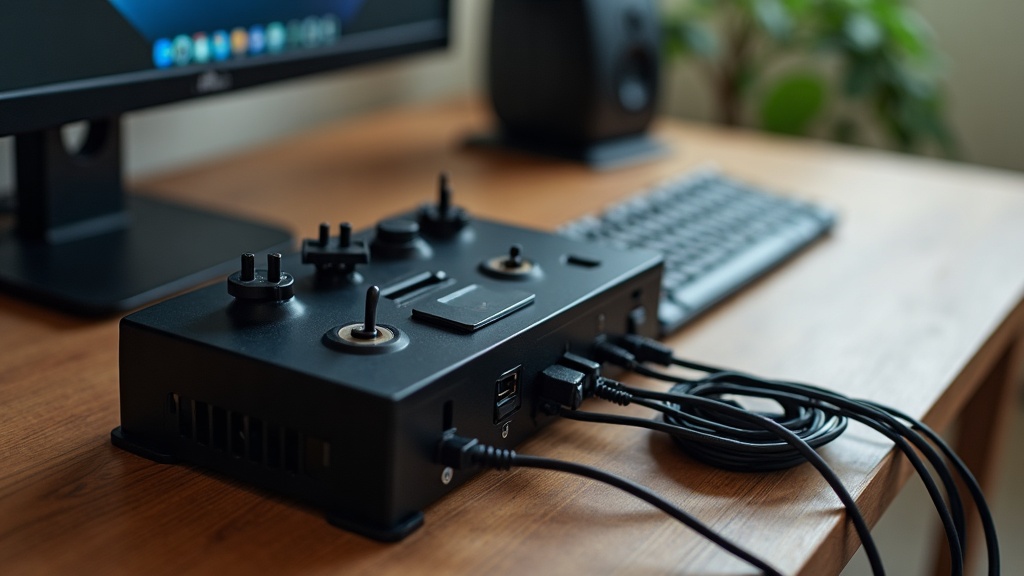
§04Why does cable management matter for comfort, not just looks?
Loose cables under a desk get caught on feet, snag chairs, and force you to twist or reach awkwardly to plug things in. Managing them isn’t just tidiness — it removes small physical obstacles that quietly affect posture over a long session.
A basic cable tray mounted under the desk, some reusable velcro ties, and a power strip placed somewhere reachable without crouching solve most of the problem. It’s worth routing monitor, keyboard, mouse, and headset cables along a similar path rather than letting each one find its own route, since a single bundle is far easier to keep out of foot space than half a dozen loose wires.
This becomes more important as setups grow. Anyone adding a second monitor, an external drive, or extra peripherals over time should expect to redo cable routing occasionally rather than just adding to the pile.
§05What lighting setup is best for a gaming desk?
Avoid pointing bright light directly at the screen or sitting with a window behind the monitor, since both cause glare and force your eyes to work harder. A soft side light and a dim, indirect source behind the monitor generally works better than one bright overhead lamp.
Bias lighting — a soft light placed behind the monitor — is a common recommendation because it reduces the contrast between a bright screen and a dark room, which some players find eases eye strain over long sessions. It doesn’t need to be elaborate; a simple LED strip stuck to the back of the monitor or desk does the job.
RGB lighting inside the setup is a matter of taste and doesn’t meaningfully affect comfort either way, but it’s worth keeping any accent lighting out of your direct line of sight to the screen so it isn’t competing with the image on the monitor itself.
§06Does peripheral placement affect comfort as much as furniture?
Yes. A mouse mat too small to allow a full swing, a keyboard pushed too far back, or a headset stand blocking natural arm movement can undo the benefit of a well-adjusted chair and monitor. Peripheral placement is often the last thing people fix, even though it’s the cheapest.
A wrist rest helps some players and feels unnecessary to others; it’s worth testing rather than assuming either way. What matters more consistently is keyboard angle — a steep typing angle forces the wrists into an unnatural bend, and most mechanical keyboards have adjustable feet for exactly this reason.
For anyone building or refreshing a full setup, it’s worth reading up on which PC parts matter most for the money before assuming a comfort problem is actually a hardware problem — sluggish performance and physical discomfort can feel similar during a long session but need very different fixes. Likewise, if a screen feels tiring to look at, it’s worth checking whether the real culprit is screen tearing rather than desk setup at all.
§07How do you set up a comfortable desk for console gaming on a monitor?
Console setups on a desk monitor follow the same rules as PC — eye-level screen, arm’s-length distance, supported wrists — but also need to account for controller use, which changes hand position and posture compared to a mouse and keyboard.
Controller play tends to encourage leaning back rather than forward, so a chair with good lumbar support matters even more here than for keyboard-and-mouse setups. It’s also worth checking whether HDMI 2.1 matters for your setup if you’re pairing a modern console with a desk monitor, since cable choice can affect picture quality and responsiveness on that kind of display.
Desk-based console gaming also raises the question of input responsiveness in a smaller, closer viewing environment. Anyone chasing the snappiest possible feel on a desk monitor should look into what input lag actually is and how to reduce it, since display settings often matter as much as the hardware itself.
§08What’s a reasonable order to tackle a gaming desk setup?
Start with the chair and monitor height, then desk depth and mouse space, then cable management, then lighting. Fixing posture first prevents wasted effort on cosmetic changes that won’t matter if the seating and screen position are still wrong.
- Adjust chair height so feet sit flat on the floor and knees are level with the hips.
- Raise or lower the monitor so its top edge is at or just below eye level.
- Check desk depth allows a comfortable arm’s-length viewing distance.
- Clear enough flat space for a full mouse swing and relaxed wrist position.
- Route cables into a single bundle away from foot space.
- Add soft, indirect lighting and remove any glare sources behind the screen.
None of this requires an expensive overhaul. A lot of comfort problems at a gaming desk come from furniture that was never actually adjusted after it was bought, rather than furniture that’s fundamentally wrong. For readers weighing whether to upgrade monitor, chair, or desk first, it’s worth browsing general buying advice and the wider PC gaming setup coverage to see which upgrade actually addresses the discomfort being felt, rather than guessing. And if hardware itself — not the desk — turns out to be the real source of frustration, the consoles and hardware section covers what’s worth checking before spending on new gear.