Upscaling is a technique that renders a game at a lower internal resolution, then uses software (and often dedicated hardware) to reconstruct it into a sharper, higher-resolution image before it hits the screen. It’s everywhere now because it lets developers chase better visuals and higher frame rates without demanding more raw graphics power than most systems have.
§01What does “upscaling” actually mean in a game?
Upscaling means the game engine is drawing fewer pixels than what appears on the display, and a separate process fills in the gap. Instead of rendering every frame at, say, native 4K, the game might render at a lower internal resolution and then scale that image up.
The trick is that modern upscalers don’t just stretch and blur the picture the way old-fashioned resizing does. They use temporal data (information from previous frames), motion vectors, and in some cases AI models trained on high-resolution images to guess what the missing detail should look like. Done well, the result looks close to native resolution while costing the graphics card noticeably less work.
This matters because resolution and frame rate are in constant tension. Pushing more pixels takes more processing time, which usually means a lower frame rate. Upscaling is one of the main tools developers now use to have both, and it connects directly to the broader tradeoff discussed in why frame rate matters more than resolution.
§02Why is every game using upscaling now?
Games are using upscaling because visual demands have grown faster than the raw horsepower of affordable hardware. Ray tracing, denser environments, and higher-fidelity textures all cost performance that upscaling helps claw back cheaply.
A few forces pushed upscaling from a niche feature to something close to standard:
- Ray tracing and other advanced lighting effects are expensive to compute, and upscaling offsets a lot of that cost.
- Console makers and PC hardware vendors built dedicated upscaling technologies into their platforms, so developers get it largely “for free” if they support it.
- Players increasingly game on 4K or high-refresh-rate displays, which multiply the pixel count a system has to render every second.
- Upscaling gives developers an easy performance dial to offer players choice between sharper image quality and smoother frame rates, rather than forcing one fixed setting.
It’s also become a competitive feature between hardware makers. Graphics card and console manufacturers now market their own upscaling technology almost as heavily as raw processing power, because it directly affects the finished image players see.
§03How is upscaling different from just lowering the resolution?
Lowering the resolution outright means the game renders fewer pixels and nothing fills in the missing detail — the image is simply softer or blockier. Upscaling renders at that same lower resolution but then reconstructs extra detail using additional data, so the final image looks noticeably closer to native resolution.
Basic resolution scaling (sometimes called “dynamic resolution”) is a blunt tool: the game shrinks the render resolution when things get demanding, and the display just stretches that image to fit the screen. It works, but the seams show, especially in fine textures, foliage, or text.
Modern upscalers instead use extra information the basic method throws away:
- Motion vectors — data about how objects and the camera are moving frame to frame, which helps predict detail rather than guess blindly.
- Temporal accumulation — blending information from several recent frames instead of just the current one.
- Trained models — in some upscaling systems, a neural network trained on high-resolution reference images helps reconstruct plausible detail that wasn’t in the low-resolution frame at all.
The result is an image that can look sharper than what a plain resolution drop would produce, sometimes even holding up reasonably well next to native rendering, though this varies a lot by game and by how well the developer implemented it.
§04Does upscaling need special hardware?
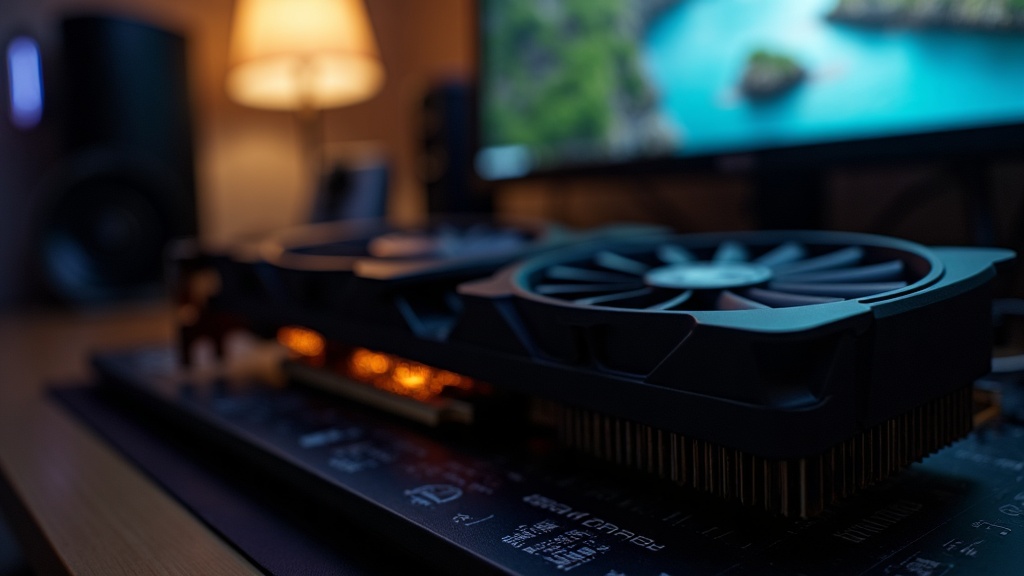
Some upscaling techniques run better, or exclusively, on specific hardware, while others are designed to work broadly across different graphics cards and consoles. Whether it needs “special” hardware depends entirely on which upscaling technology a game is using.
Broadly, there are two camps:
- Hardware-accelerated upscaling uses dedicated processing units built into certain graphics cards to run the reconstruction step quickly and efficiently. These tend to be tied to a specific hardware vendor’s cards.
- Hardware-agnostic upscaling is built to run on a wider range of graphics cards, including older or less powerful ones, using more general-purpose processing rather than specialized chips.
This is one reason the topic overlaps with buying advice: the presence, quality, and hardware requirements of a game’s upscaling options can meaningfully affect which graphics card makes sense for a given budget. It’s worth checking what upscaling technologies a card supports before assuming a “cheaper” model will deliver similar image quality to a pricier one in upscaling-heavy games.
§05Does upscaling hurt image quality or add input lag?
Upscaling can introduce visible artifacts like ghosting, blurring in fast motion, or shimmering on fine detail, and some implementations add a small amount of processing delay. The severity depends heavily on the specific technology and how well the game integrates it.
Common quality complaints include:
- Trailing or “ghosting” behind fast-moving objects, since the technique relies on blending previous frames.
- Softness or instability in distant fine detail, like foliage, hair, or chain-link fences.
- Occasional flickering on thin, high-contrast edges.
On the latency side, any additional processing step takes some time, even if it’s small. Players sensitive to responsiveness, particularly in competitive multiplayer games, sometimes notice this more than players in single-player, story-driven games. Anyone concerned about this tradeoff should read up on what input lag is and how to reduce it, since upscaling settings are one of several variables that affect how a game actually feels to play, not just how it looks.
§06Is there a separate technology for boosting frame rate, not just resolution?
Yes. Frame generation is a related but distinct technique that creates entirely new in-between frames rather than reconstructing an existing frame at higher resolution. It’s often bundled alongside upscaling but solves a different problem: smoothness rather than sharpness.
Where upscaling answers “how do we make this frame look higher-resolution,” frame generation answers “how do we produce more frames per second without the graphics card fully rendering each one.” The system analyzes two real rendered frames and inserts a synthetic frame between them.
This can make motion look dramatically smoother on a high-refresh-rate display, which pairs with considerations covered in what refresh rate is worth paying for on a monitor. But because the inserted frame isn’t based on new player input, it doesn’t reduce input lag the way a genuinely higher frame rate would, and it can occasionally introduce its own visual artifacts around fast-moving objects.
§07Does upscaling matter more on PC or on console?
Upscaling matters on both, but it plays a different role on each. On PC, it’s usually an optional setting players tune themselves. On console, it’s often baked into the game by the developer as the way a fixed piece of hardware hits its target resolution and frame rate at all.
On consoles, upscaling is frequently the quiet reason a game can offer separate “quality” and “performance” display modes — one that favors resolution and one that favors frame rate — from the same hardware. Understanding that distinction helps make sense of console marketing language, and it connects to broader questions like whether you need a 4K TV for a modern console and what HDMI 2.1 actually changes for gaming, since the display itself is part of how the upscaled image ultimately looks.
On PC, upscaling settings sit inside a broader menu of options a player controls directly, alongside decisions about which PC parts matter most for the money and how much RAM a gaming PC actually needs. Because PC hardware varies so much from one machine to the next, upscaling is often the single most impactful setting a player can adjust to hit a comfortable frame rate.
§08Should players just leave upscaling turned on?
For most players, turning upscaling on at a moderate setting is a reasonable default, since it usually delivers a meaningfully smoother experience with only a small, often hard-to-notice cost to image sharpness. Whether it’s worth it in a specific game comes down to personal sensitivity to visual artifacts and how demanding that particular game is.
A practical way to decide:
- Try the game with upscaling off first, at native resolution, to see the frame rate baseline.
- Turn on a moderate upscaling setting and compare how the frame rate and image sharpness both change.
- Pay attention during fast motion specifically, since that’s where artifacts are most visible.
- Adjust up or down from there based on whether smoothness or clarity matters more for that particular game.
This is ultimately a judgment call rather than a settled fact — a competitive shooter and a slow narrative game reward very different choices, and no single upscaling setting is “correct” for every game or every player’s eyes. Readers building or upgrading a system around this decision may also find it useful to browse the PC gaming and setup archive and the buying advice archive for related hardware tradeoffs, or the consoles and hardware archive for how these features show up on fixed platforms.